
On this page
To clear System Data on Mac, start with System Settings → General → Storage. Remove files you can identify, such as old installers, unused apps, downloads, and safe-to-rebuild caches. Do not delete unknown Library folders just because they are large. If you use Owll for recordings, confirm that the transcript and summary are synced before removing the local audio file.
What System Data includes
System Data is a storage category, not one folder. It can include caches, logs, temporary files, local snapshots, app support files, installers, and device backups that macOS cannot place elsewhere.
The size can change after a restart or a storage scan. A large number does not tell you which file is safe to delete, so use the storage view as an inventory rather than a deletion command.
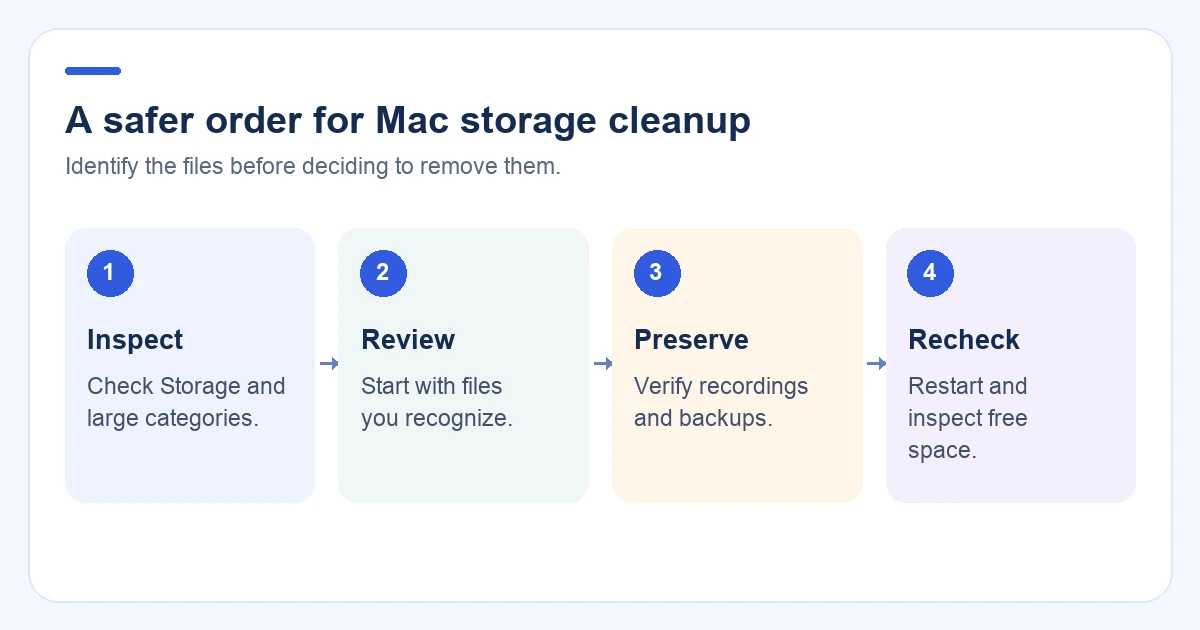
Step 1: Find the largest categories
- Open System Settings.
- Select General → Storage.
- Wait for the categories to finish calculating.
- Review large applications, documents, downloads, messages, and backups.
- Note what is actually taking space before you delete anything.
If the disk is nearly full, remove one known-safe installer or duplicate download first. A little free space gives macOS room to complete its scan and updates.
Step 2: Remove apps and downloads you recognize
Delete apps you no longer use from the Applications folder. If an app has an official uninstaller, use it. Empty the Trash only after checking its contents.
Next, sort Downloads by size and date. Old DMG files, ZIP archives, exported videos, and duplicate installers are common sources of wasted space. Keep anything you may need to reinstall or verify later.
Do not remove an app just because its support folder is large. Check the app name, last-used date, and whether another tool depends on it.
Step 3: Clear caches with a narrow scope
Many caches can be rebuilt, but deleting the wrong folder can break an app or remove useful offline data. Use this sequence:
- Quit the app that owns the cache.
- Confirm the cache location and size.
- Delete identifiable cache contents, not an unknown parent folder.
- Reopen the app and check that it works.
- Recheck storage after macOS or the app rebuilds what it needs.
Prefer an app’s own cleanup control when one exists. Avoid “one-click” cleaners that hide the file list or remove protected system files without review.
Step 4: Check recordings and backups before deleting
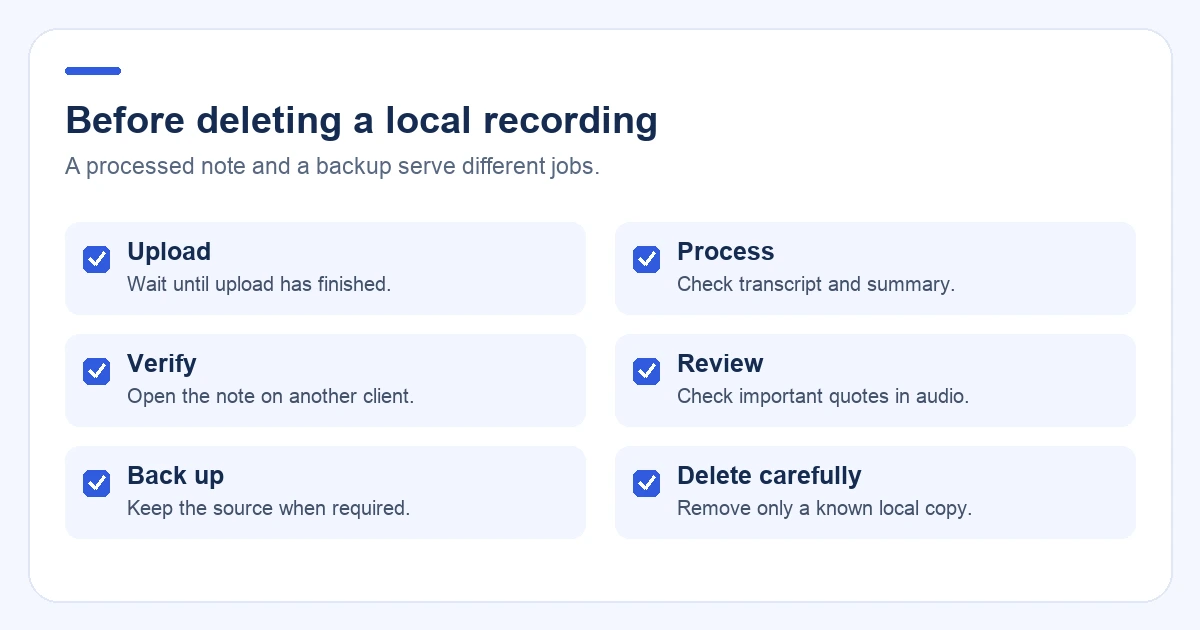
Recordings can be some of the largest files on a Mac. Before deleting one, confirm that the information inside it is safe elsewhere.
For an Owll recording:
- Wait for the upload and transcript processing to finish.
- Open the note on another supported device or in the web workspace.
- Check the summary and any important quote against the audio.
- Export or back up the source if your workflow requires it.
- Delete the local recording only after those checks pass.
Apply the same care to iPhone, iPad, and other device backups. Check the device name and date before deleting an old backup.
Here, “local recording” means a separate file you recognize in Finder. Deleting a note inside a synced app may remove it from every device. Do not use in-app note deletion to clear a local audio export.
Step 5: Let macOS recalculate System Data
Restart the Mac and return to System Settings → General → Storage. If a particular app is responsible for the growth, use its settings to remove render files, offline downloads, or application data.
Developer tools, virtual machines, video editors, and creative apps often have their own cleanup controls. Use those controls instead of deleting folders by guesswork.
If System Data remains unusually large after a restart and normal cleanup, back up the Mac and consult Apple Support or the software vendor. The category may reflect a local snapshot, application issue, or delayed storage calculation.
Step 6: Verify the result
After emptying the Trash, check that:
- important apps still open;
- recordings and documents are available;
- a recent backup exists;
- enough free space remains for updates and temporary work;
- System Data is not growing again immediately.
How Owll fits into Mac cleanup
Owll is a recording, transcription, and note-taking workflow, not a Mac cleaner. Its role here is simple: help you verify that a large recording has become a usable, synced note before you remove the local source.
For recording setup, see Owll’s Mac audio recorder page. For the continuity check, read How to sync meeting notes across devices.
FAQ
How do I clear System Data on Mac?
Open System Settings → General → Storage, identify large apps, downloads, caches, backups, and recordings, then remove known-safe items and check storage again after a restart.
Why is System Data so large?
It can include caches, logs, local snapshots, app support files, installers, backups, and data macOS has not yet reclassified. The number can change after a restart or a completed storage scan.
Is it safe to delete Mac cache files?
Some cache contents can be rebuilt. Close the owning app and remove only identifiable contents. Use the app’s own cleanup control when available.
How do I free space without losing recordings?
Finish uploading and processing the recording, verify the transcript and summary on another device or the web, and keep a backup before deleting the local source.
Should I use a Mac cleaner app?
Use one only if it shows the exact files it will remove and lets you review or undo the change. A cleaner should make inspection easier, not replace it.
Final checklist
- Check storage before deleting.
- Remove known-safe apps, installers, downloads, and cache contents.
- Verify synced recordings before deleting local copies.
- Empty Trash only after review.
- Restart and check storage again.
- Keep a current backup.
Continue with Owll on your devices
Sources and product information
For macOS storage guidance, see Apple’s guide to freeing storage space on Mac. A recording may be classified under Documents or another storage category rather than System Data; inspect its actual location before deleting it.