On this page
To record audio on Mac, choose the source first, allow microphone access, make a short test, and then start the full session. Voice Memos and QuickTime are enough for a simple file. Owll is useful when the recording also needs a searchable transcript, AI summary, translation, or action items.
Choose the audio source
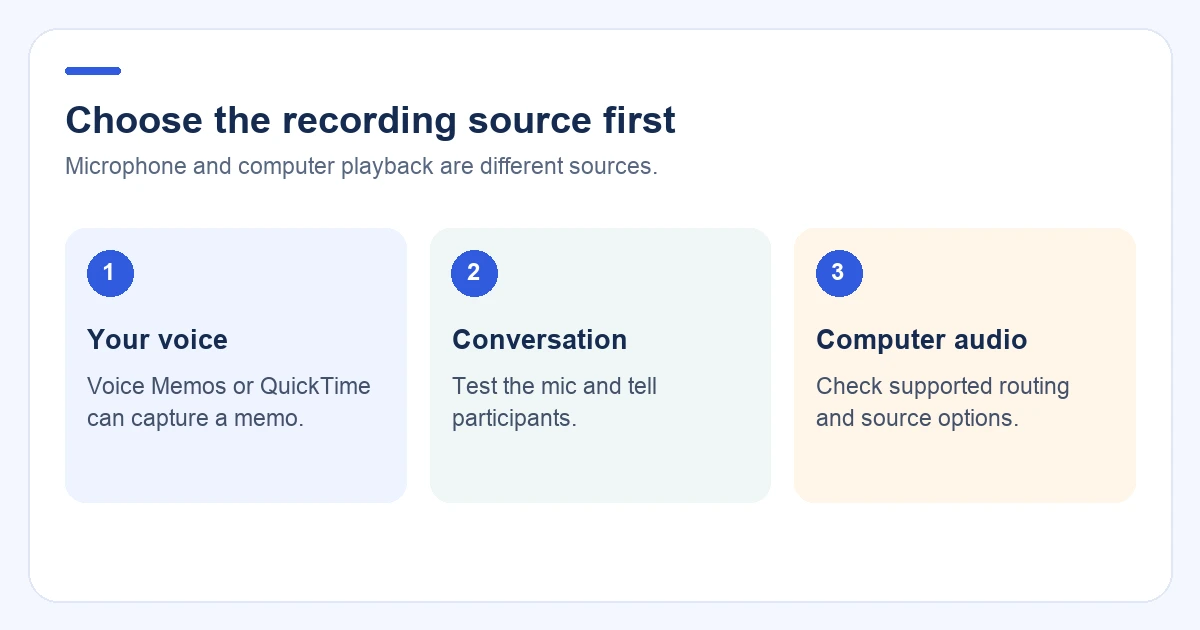
Decide what you need before opening a recorder:
- Your voice: a voice memo or idea.
- A conversation: a meeting, interview, lecture, or research session.
- Computer playback: sound from a browser, video call, or media player.
Microphone access does not automatically capture sound played by the Mac. Internal audio and room audio are different sources, so confirm the method and app support before relying on it.
Record a quick voice memo
Voice Memos is usually the fastest option for a short personal recording:
- Open Voice Memos.
- Select the intended microphone if the app offers a source menu.
- Record for ten seconds.
- Play the sample back.
- Start the longer memo only after the test sounds clear.
This gives you an audio file. If you need a transcript or structured summary, use the file with a transcription workflow afterward.
Record with QuickTime Player
QuickTime Player works well for a simple microphone recording:
- Open QuickTime Player.
- Choose File → New Audio Recording.
- Select the microphone and quality option.
- Make a short test.
- Start the full recording and save it when finished.
QuickTime does not turn a conversation into a searchable meeting note by itself. You can upload a supported file to Owll’s web workspace when you want transcription and AI review after recording.
Record a meeting or interview with Owll
Use Owll when the finished result matters as much as the audio file:
- Install Owll from the official Mac download and sign in.
- Select an available microphone and grant the requested permissions.
- Tell participants that you are recording and follow the consent rules for your location and meeting.
- Record a short test and listen back.
- Record the full conversation.
- After processing, review the transcript and summary against the audio.
- Use the action items, translation, or summary for follow-up.
Record on Mac, check a detail on your phone, and use the web workspace when you need a larger review surface or sharing and export tools. For setup details, see Owll’s Mac audio recorder and transcription page.
Can you record internal or system audio?
System audio and microphone audio are separate sources. A microphone permission does not guarantee that a recorder can hear browser or app playback.
Check the source options in your installed Owll Mac release before relying on a system-audio workflow. If you already have a video or audio file, exporting it and uploading the file for transcription can be more reliable than capturing playback in real time.
Record a Zoom or Google Meet conversation
You have two different options:
- Use the meeting platform’s recording controls when the host, plan, participant consent, and organization policy allow it.
- Use Owll’s supported meeting recording workflow when you need a transcript and summary connected to the conversation.
A local Mac microphone recording is not the same as a platform recording. Test the exact setup you will use and tell participants what is being recorded.
Fix a silent recording
Check these items in order:
- Open System Settings → Privacy & Security → Microphone and allow the recorder.
- Open System Settings → Sound → Input and select the intended microphone.
- Raise the input level and watch the meter while speaking.
- Disconnect unused headsets, displays, USB microphones, and virtual audio devices.
- Close other apps that may be using the microphone.
- Reopen the recorder after changing a permission.
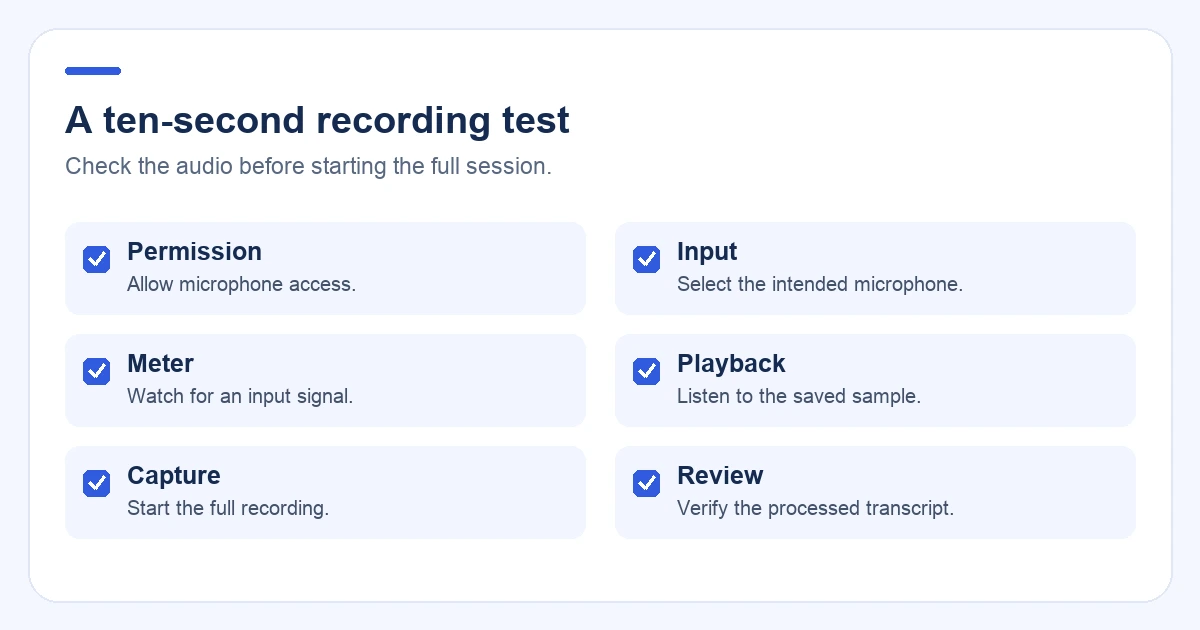
- Make another ten-second test.
If the audio is present but the transcript is missing, wait for upload and processing to finish, confirm the network connection, and check the same account in the web workspace.
Turn a recording into useful notes
A transcript is a source, not always a finished document. Use this short review loop:
- Find the decision, name, date, or question you need.
- Verify the wording against the audio.
- Keep the summary, decisions, open questions, and action items together.
- Translate when needed, then check names and specialist terms.
- Share only the part of the recording or note that the audience needs.
Keep the note available on every device
Use the same Owll account on Mac, iPhone/iPad, Android, and the web. Wait for upload and processing to finish, then open the note on a second device and search for one phrase.
For the full continuity procedure, read How to sync meeting notes across devices. For app selection, see the cross-platform note-taking comparison.
FAQ
What is the easiest way to record audio on Mac?
Use Voice Memos or QuickTime for a short voice recording. Use Owll when you also need transcription, summaries, translated output, or action items across supported devices.
How do I record my microphone on Mac?
Choose an input, allow microphone access in System Settings → Privacy & Security, make a short test, and then start the longer recording.
Can I record system audio with a Mac voice recorder?
System audio is different from microphone audio. Check the recorder’s supported sources and the audio-routing method required by your macOS version.
How do I record a meeting and get notes?
Use a permitted meeting recording workflow, confirm participant consent, and choose a tool that can transcribe and summarize the result. Review the processed transcript before sharing it.
Can I record on Mac and review on my phone?
Yes. Use the same Owll account, wait for upload and processing to finish, then open the note on a supported mobile client or the web workspace.
Final checklist
- Choose the source before pressing record.
- Grant microphone access and select the right input.
- Make a ten-second test.
- Tell participants and follow applicable recording rules.
- Review the transcript against the audio.
- Confirm the note is available on another device before deleting the source file.
Continue with Owll on your devices
Sources and product information
For built-in recording and permissions, see Apple’s guides to recording audio in QuickTime Player and microphone access on Mac.