On this page
Owll supports multi-device collaboration and sync. Whether you use Mac, iPhone/iPad, Android, Apple Watch, or the web, sign in with the same Owll account to access your meeting recordings, transcripts, summaries, translations, and action items across supported clients. This guide explains how to keep the note available as you move from one device to another.
1. Use the same account
Sign in with the same account on Mac, iPhone/iPad, Android, and the web. If a note appears on one device but not another, check the account before reinstalling the app or changing settings.
Using one account keeps the original recording and its processed note in the same library, making them easier to find.
2. Capture on the device that fits the moment
Use Mac when the meeting is part of your desktop work and you want a larger screen for setup or review. Use a phone or wearable when you are moving between rooms or speaking face to face.
The goal is continuity, not identical behavior on every device. Capture first; organize after the recording is processed. For Mac setup, see Owll’s Mac audio recorder page.
3. Wait for processing
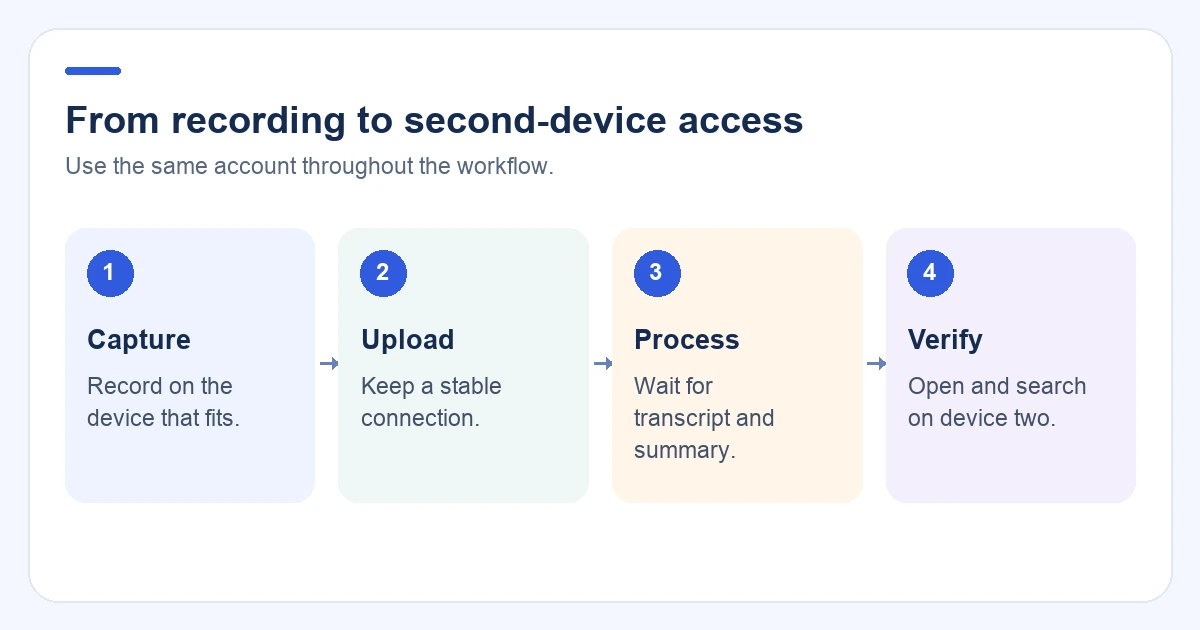
A recording can appear before its transcript or AI summary is ready. Treat the workflow as four stages:
- The recording stops and uploads.
- The transcript finishes processing.
- The summary, translation, or action items become available.
- The finished note opens on another device.
Search for one phrase or decision on the second device. Do not delete the local recording while upload is still in progress.
4. Review where the context is best
A phone is useful for checking one name, decision, or follow-up. Mac or the web is better for a long transcript, source comparison, and editing.
Use one note instead of creating a new summary on every device. When a detail matters, open the timestamp and check it against the recording.
5. Keep action items with the reviewed note
A finished meeting note may include the transcript, summary, decisions, open questions, and action items. Keep them together until you have checked the source.
If your team uses another workspace, move the reviewed decisions and tasks there afterward. This avoids a stale task list copied from an earlier version of the note.
6. Troubleshoot a missing note
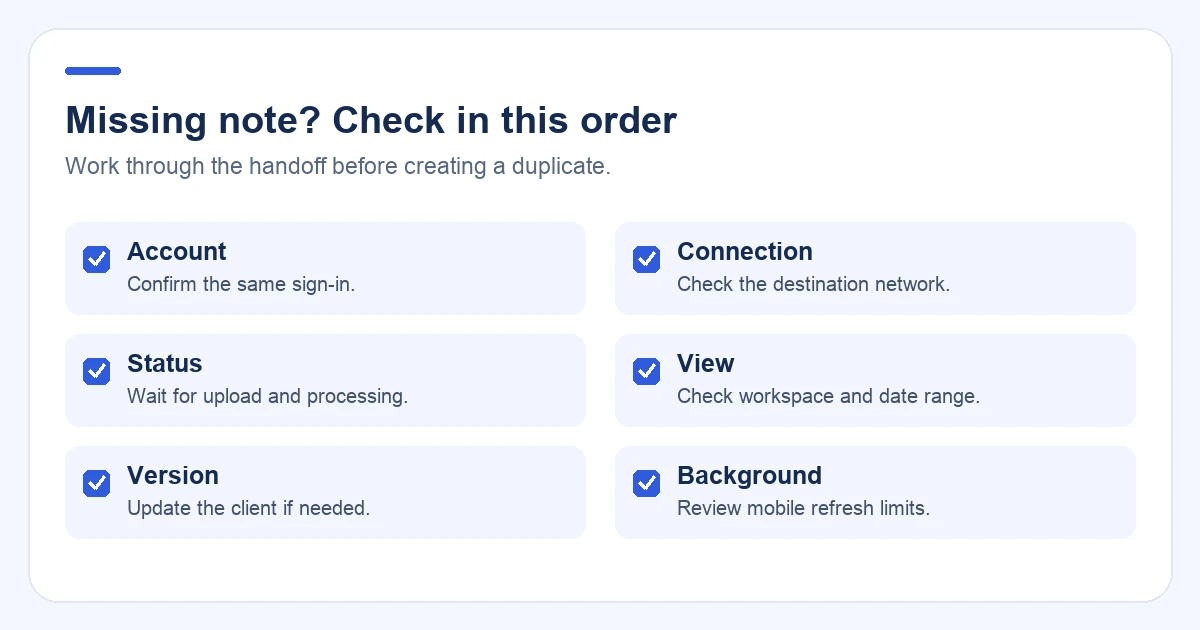
Check these items in order:
- The same account is active on both devices.
- The destination device has a stable connection.
- Upload and processing have finished.
- You are viewing the correct workspace, folder, or date range.
- The app is up to date.
- Battery or background restrictions are not blocking refresh on mobile.
If Mac cannot record, make a ten-second test and confirm the input device. If the recording exists but the transcript is missing, wait for processing and check the web workspace before creating a duplicate.
7. Verify before deleting local files
Sync is not the same as a backup. Before deleting a recording or clearing Mac storage:
- Open the note on another device or the web.
- Confirm the transcript and summary are complete.
- Check important names, figures, and quotes against the audio.
- Export or back up anything your policy requires.
- Delete the local source only after those checks pass.
For storage cleanup, read How to Clear System Data on Mac Safely.
Remove only a separate local file you recognize in Finder. Deleting a recording or note inside a synced app may remove it everywhere, so do not treat that control as local storage cleanup.
Text-first and conversation-first notes
Text-first apps work well when you already know what to write. Conversation-first tools work better when the information is spoken.
A multi-device workflow can use both: capture the discussion as audio, wait for the transcript and summary, review the source on Mac or web, and move the checked decisions into the team workspace. See Best Cross-Platform Note-Taking Apps for the app-model comparison.
How Owll fits the workflow
Owll connects recording, transcription, summaries, translations, and review across supported clients. You can record on Mac, check the note on a phone, and use the web workspace for a larger review surface.
Actions can vary by client and plan. Test the path your team needs: capture, upload, transcript, summary, search, review, and share.
FAQ
Why does a meeting note take longer to appear on another device?
The recording may still be uploading, or the transcript and summary may still be processing. Check the source device first, then refresh the destination device.
Should I keep separate notes on each device?
No. Separate copies create conflicts and make search unreliable. Keep one synced note and use the device that fits each moment.
How do I sync notes across Mac, iPhone, and Android?
Install the supported clients, sign in with the same account, wait for upload and processing to finish, and verify one edit or search result on a second device.
What if a recording is missing from my phone?
Confirm the account, check the network, verify upload and processing, and look in the correct workspace or date range. Check the web workspace before recording again.
Can I delete the local recording after it syncs?
Only after you verify the finished note on another device, complete any required export or backup, and confirm that you no longer need the source audio.
Final checklist
- Use one account across supported devices.
- Capture on the device that fits the conversation.
- Wait for upload, transcription, and summary processing.
- Verify the finished note on a second client.
- Check important facts against the recording.
- Keep one source of truth for action items.
- Back up or export before deleting local files.
Continue with Owll on your devices
Sources and product information
Use the official Owll downloads page to find supported clients. Available actions can differ by client and plan even when the same note is accessible.